This article explains how to access email provided by Bluehost alongside your regular Gmail account or using another email client (eg Thunderbird).
If you buy hosting for your blog or website from Bluehost, then you will have email account(s) as part of the package. This is one way to get a professional-looking email address like michael@YourDomain.com instead of an amateur / throwaway looking one like michael.YourDomain@gmail.com
Email account(s) are created through the Email Manager tool:
You can also get to the webmail screen without being logged in to your Bluehost account this is handy if you have a team-member who needs an email account, but you don't want them to have full control of your domain. So do this, ie to read and send email messages from an email account that is hosted in Bluehost:

You can manage the email message for your domain account from this screen.
However this is quite inconvenient: the email account from your own domain is accessed through a different tool from your other email account(s), and it would be easy to forget to check it.
A better approach is to integrate your domain email account with your regular Gmail account, or to check it through Thunderbird or some other email client.
First, get the email account details
Now go into Gmail

Job done. If all the settings are correct, you should not be able to see messages sent to your professional / Blue-host provided domain account inside your gmail account, and you should be able to use the Send-as feature in Gmail to send messages that 100% appear to have come from your Blue-host provided domain account.
Also, there should be enough information here for your to see how you can configure other email clients (I use Thunderbird) with your Bluehost-hosted email account.
If you buy hosting for your blog or website from Bluehost, then you will have email account(s) as part of the package. This is one way to get a professional-looking email address like michael@YourDomain.com instead of an amateur / throwaway looking one like michael.YourDomain@gmail.com
Email account(s) are created through the Email Manager tool:
- Log into www.bluehost.com with your Bluehost account (which mail be gmail-integrated)
- Click on the Hosting tab
- Scroll down to the Email section and choose Email Manager.
You can also get to the webmail screen without being logged in to your Bluehost account this is handy if you have a team-member who needs an email account, but you don't want them to have full control of your domain. So do this, ie to read and send email messages from an email account that is hosted in Bluehost:
- Go to www.bluehost.com (log out if you were already logged in)
- Click Login,
- Choose webmail login.
- Enter the email name and password,

You can manage the email message for your domain account from this screen.
However this is quite inconvenient: the email account from your own domain is accessed through a different tool from your other email account(s), and it would be easy to forget to check it.
A better approach is to integrate your domain email account with your regular Gmail account, or to check it through Thunderbird or some other email client.
How to check your Bluehost provided own-domain email through your gmail account
First, get the email account details
- Log into www.bluehost.com with your Bluehost account (ie NOT your email account)
- Click on the Hosting tab
- Scroll down to the Email section and choose Email Manager.
- In the Email Accounts tab, note the email address, and if necessary use the View Details button to re-set the email password (you need to know this password later in the process)
- Click on Email-configuration: The screen that opens shows you the other details that you will need to give gmail. Ideally leave this tab open while you set up gmail, so you can copy-and-paste from it.
Now go into Gmail
- Click on the gearwheel and choose Settings
- Choose the Accounts and Import subtab
- Scroll down to Check email from other accounts section, and choose Add an email account
- Enter the email address that you want to add
- Choose POP3 / Import emails from my other account
- Use the details from the Private (with SSL) section of the Bluehost screen to fill in the account details: the user-name should be the same as the email-address that you are adding. Notice that the first screen is about incoming email, so you need to use the inward settings (eg port 995 for SSL)
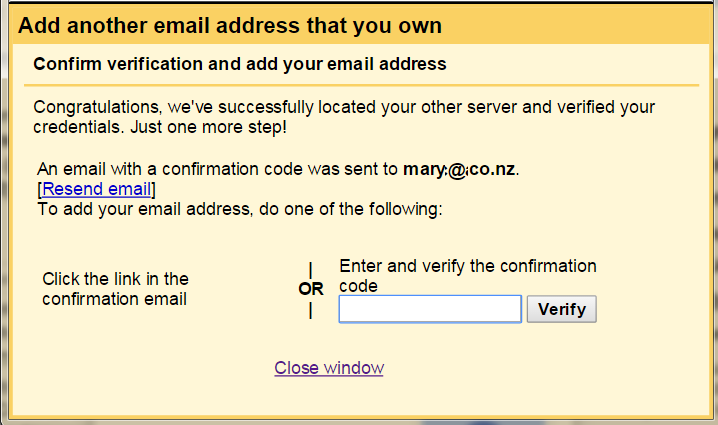
- On the next screen, choose Yes, I want to be able to send mail as
- Enter the Name that you want people who get emails from this account to see.
- Untick Treat as an Alias (mostly your'll want to untick this if you are wanting emails from your Bluehost-provided email account to be separate from your personal Gmail account - read more about the options here)
- Fill in the outgoing mail options with the details you got from Bluehost: you need to use SSL, not TSL as recommended, and again the user-name is the email address.

Job done. If all the settings are correct, you should not be able to see messages sent to your professional / Blue-host provided domain account inside your gmail account, and you should be able to use the Send-as feature in Gmail to send messages that 100% appear to have come from your Blue-host provided domain account.
Also, there should be enough information here for your to see how you can configure other email clients (I use Thunderbird) with your Bluehost-hosted email account.